
Break Reminder Apps for Windows, macOS, and Linux: A Practical Guide
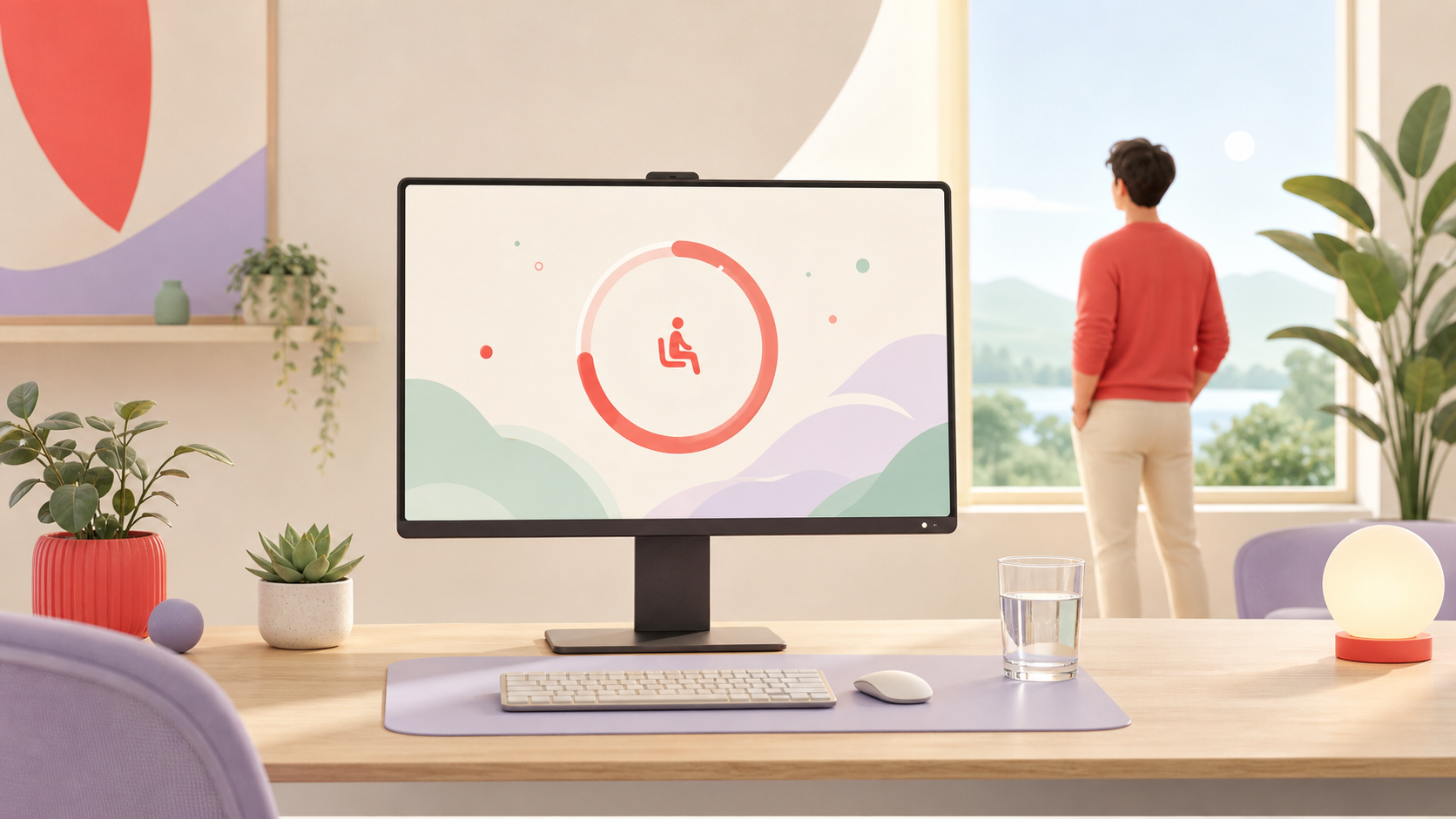
A break reminder app has one simple job: help you notice how long you have been at the screen and make it easier to pause. The useful differences are in the details. Does it let you set short and long breaks separately? Can it pause while you are away? Does it work with your operating system, multiple monitors, and the way you handle meetings?
This guide compares several established desktop options: Blink Eye, Stretchly, Workrave, Safe Eyes, and Time Out. The comparison is based on each project's public documentation, not on a hands-on test of every app or every operating system release. Check the current download page before installing, since platform support and system requirements can change.
Quick comparison
| App | Windows | macOS | Linux | A good fit when you want |
|---|---|---|---|---|
| Blink Eye | Yes | Yes | Yes | Custom timers, full-screen reminders, and usage summaries in one desktop app |
| Stretchly | Yes | Yes | Yes | Open-source reminders with break ideas and idle-time handling |
| Workrave | Yes | No stable download listed | Yes | Micro-pauses, longer rest breaks, and exercise reminders |
| Safe Eyes | No | No | Yes | Linux-focused breaks with exercises and multi-monitor support |
| Time Out | No | Yes | No | A Mac-only routine with configurable micro and normal breaks |
Platform availability in this table follows the projects' own download or feature pages. For example, Workrave's current download page lists GNU/Linux and Windows, while its macOS port is described as a development version that has not been tested as thoroughly as the stable release. Workrave downloads
What a break reminder can and cannot do
A timer can bring a break to your attention. It cannot make you take one, correct your desk setup, diagnose an eye problem, or guarantee that symptoms will go away. Think of it as a habit aid, not a treatment.
The American Academy of Ophthalmology recommends taking regular screen breaks and describes the 20-20-20 rule: every 20 minutes, look at something at least 20 feet away for at least 20 seconds. It also recommends keeping the screen around arm's length away and positioning it so you look slightly downward. The Academy notes that many screen-related eye symptoms are temporary, and advises contacting an ophthalmologist if they continue. AAO computer-use guidance and its computer glasses guide cover these tips.
A reminder app can make that routine easier to remember. It does not turn the rule into a medical guarantee. If you have ongoing pain, blurred vision, or other persistent symptoms, get advice from an eye-care professional rather than relying on an app. The AAO also says it does not recommend special eyewear for computer use based on current evidence about screen light. AAO on computer glasses
The apps, and who they suit
Blink Eye: one customizable desktop app for three operating systems
Blink Eye is designed for Windows, macOS, and Linux. The project describes customizable reminder timers, full-screen break prompts with a countdown, configurable reminder screens, and daily, weekly, and lifetime usage statistics. That combination suits people who want more than a quiet notification and would like to review how their screen habits are changing. Blink Eye project
A practical starting point is to set one short reminder you can follow consistently, then adjust the interval and duration after a few workdays. A full-screen prompt may be useful if a small notification is easy to ignore. If interruptions are a concern, look through the app's settings and test the behavior during a normal work session before depending on it.
Consider Blink Eye if: you use Windows, macOS, or Linux and want configurable reminders with a visible break screen and usage summaries.
Stretchly: flexible, open-source reminders across desktop platforms
Stretchly is an open-source app for Windows, macOS, and Linux. Its documented defaults include a 20-second mini break every 10 minutes and a five-minute long break every 30 minutes, after two mini breaks. You can change the schedule, postpone or skip breaks, and use strict mode. Stretchly also pauses reminders after a period of computer inactivity and can respect Do Not Disturb mode. Stretchly features
Those defaults are just a starting configuration, not a schedule everyone has to follow. The available installers and macOS requirements are listed on the project's downloads page. It notes that its macOS app is unsigned, so Gatekeeper may require an extra first-launch step. Read that guidance before installing. Stretchly downloads
Consider Stretchly if: you want one open-source app on several operating systems, multiple break types, and options for handling idle time. Its many settings may take a little exploring.
Workrave: pauses and exercise prompts on Windows and Linux
Workrave focuses on micro-pauses, rest breaks, and a daily limit. It can show exercise prompts during breaks and gives users controls such as postponing or skipping, depending on the settings. Its official download page currently lists Windows and GNU/Linux stable downloads. The page mentions a macOS port under development, but warns it has not been tested as thoroughly as the stable version. For a primary work computer, treat Windows and Linux as its supported stable choices unless the project updates its guidance. Workrave downloads and platform notes
Workrave may suit someone who wants prompts for movement as well as screen pauses. If you mainly want a lightweight eye-distance reminder, its more structured break categories may be more than you need.
Consider Workrave if: you use Windows or Linux and want a long-running, open-source tool centered on micro-pauses, rest breaks, and exercises.
Safe Eyes: a Linux-first choice with exercise breaks
Safe Eyes is a Linux desktop break reminder. Its project lists short and long breaks, exercises, pre-break notifications, an idle pause, multi-screen support, and ways to customize the experience. It is distributed through several Linux package sources, but the required dependencies and installation steps vary by distribution. Check the current installation guide for your system, especially if you use Wayland or a Flatpak package. Safe Eyes project and installation notes
Consider Safe Eyes if: Linux is your main desktop and you want exercise prompts and multi-monitor support. If you move between Windows and macOS too, compare it with a cross-platform app so your routine can travel with you.
Time Out: a flexible Mac-only option
Time Out is a macOS app with configurable micro and normal breaks. Its current product page describes scheduling options, rules for postponing or skipping a break in certain contexts, natural-break detection, and optional activity statistics. The core features are free, with optional supporter and premium purchases. Check the product page for the macOS version requirement that applies to the release you plan to install. Time Out by Dejal
Consider Time Out if: you work on a Mac and want to tune break schedules or use rules around apps, calendars, or Focus. It is not the right choice if you need the same app on Windows or Linux.
Choosing by operating system
If you use Windows
Start by deciding whether you want a gentle reminder or a more visible break screen. Blink Eye and Stretchly both work across desktop platforms, so they are convenient if you may switch computers later. Workrave is another Windows option if you want exercise prompts and separate micro-pause, rest-break, and daily-limit controls. Try one app at a time so two timers do not compete for your attention.
If you use macOS
Blink Eye and Stretchly provide cross-platform options, while Time Out is built specifically for Mac. If you are considering Stretchly, check its signing and first-launch instructions. If choosing Time Out, verify its current macOS requirement and decide whether its free core features cover what you need.
If you use Linux
Blink Eye and Stretchly offer cross-platform consistency. Workrave is a Windows and Linux option with exercise-focused break categories. Safe Eyes is designed for Linux and may fit users who want break exercises and multi-monitor support. On Linux, check your desktop environment, package source, and Wayland or X11 setup before choosing an app. Some features can depend on those system details.
A simple way to set up your first week
- Choose one app. Avoid running two reminder tools at once until you know how each one behaves.
- Start with a manageable schedule. The 20-20-20 rule is a familiar starting point for eye breaks. If you also want longer movement breaks, add a separate interval rather than making every reminder long.
- Pick a reminder style you will notice. A subtle notification is less disruptive. A full-screen prompt is harder to miss, but may be a poor fit for presentations or focused tasks.
- Decide how to handle interruptions. Set expectations for snoozing, postponing, or pausing. If the app supports idle detection or Do Not Disturb, test those controls.
- Review after several days. If you dismiss every alert, change the timing or reminder style. The best schedule is one you can follow, not the one with the most reminders.
What to check before you install
- Operating system and processor: confirm the current installer supports your Windows version, macOS release, Linux distribution, and processor architecture.
- Break controls: look for separate short and long breaks, pause, snooze, and skip settings that match your work.
- Interruptions: check for idle detection, full-screen or meeting behavior, multi-monitor support, and start-at-login options.
- Accessibility: make sure text, contrast, keyboard controls, and reminder behavior work for you.
- Privacy: read what the app records. A timer does not need activity analytics to remind you, and usage tracking should be understandable and optional where possible.
- Maintenance: check the project's release history and documentation before making it part of your daily routine.
FAQ
Which break reminder apps work on Windows, macOS, and Linux?
Blink Eye and Stretchly list all three desktop platforms. Check their latest project pages for current requirements and installers.
Which app is a good fit for Linux?
Safe Eyes is Linux-focused and includes exercise breaks. Stretchly, Blink Eye, and Workrave also list Linux support. Compare package availability and desktop-environment behavior on your distribution.
Do break reminder apps prevent eye strain?
They can remind you to pause, but they cannot guarantee that you will take a break or prevent a medical condition. The AAO recommends regular screen breaks and suggests the 20-20-20 rule. Persistent symptoms deserve professional advice.
Should I use more than one reminder app?
Usually, start with one. Multiple timers can overlap and make alerts easier to dismiss. Add another only if it handles a different need, such as a separate stretch routine, and you can keep the schedules coordinated.
Sources and current platform details
- American Academy of Ophthalmology: Computer use
- American Academy of Ophthalmology: Are computer glasses worth it?
- Blink Eye project
- Stretchly features and downloads
- Workrave downloads
- Safe Eyes project
- Time Out by Dejal
App features and operating-system support can change. This guide was prepared on November 28, 2026, using the linked project documentation. It is a feature comparison, not a hands-on benchmark or medical advice.